Conversion can be performed by dropping the files you want to convert onto the Image Format Converter window. Multiple files can be dropped at once.
Different formats can be specified for opaque images and images with transparency.
An "opaque image" refers to an image that is completely opaque across its entire area (e.g., background images used in KAG). An "image with transparency" refers to an image that has transparent parts (e.g., foreground images used in KAG).
Note that even if an image format supports transparency, if all pixels are actually fully opaque, it will be treated as an "opaque image".
After conversion, a log will be displayed where you can check if the conversion of each file was successful or resulted in an error.
Below is a description of the screen.
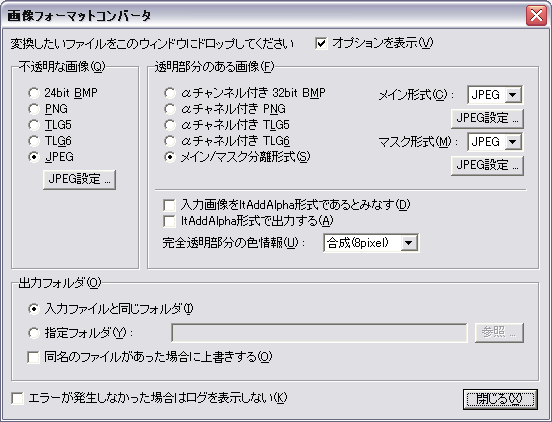
When executed, the screen above is displayed.
- "Show Options"
- When checked, the settings section below is displayed. When unchecked, the window shows only the top part and becomes narrow. You can compact the window when option settings are not needed.
- "Opaque Image - 24bit BMP"
- Selects 24-bit BMP as the output format for opaque images.
- "Opaque Image - PNG"
- Selects PNG as the output format for opaque images.
- "Opaque Image - TLG5"
- Selects TLG5 as the output format for opaque images.
- "Opaque Image - TLG6"
- Selects TLG6 as the output format for opaque images.
- "Opaque Image - JPEG"
- Selects JPEG as the output format for opaque images.
- "Opaque Image - JPEG Options..."
- Selects the JPEG compression quality when JPEG is chosen as the output format for opaque images.
- "Image with Transparency - 32bit BMP (Main+Mask)"
- Selects 32-bit BMP as the output format for images with transparency.
- "Image with Transparency - PNG with Alpha (Main+Mask)"
- Selects PNG with alpha channel as the output format for images with transparency.
- "Image with Transparency - TLG5 with Alpha (Main+Mask)"
- Selects TLG5 with alpha channel as the output format for images with transparency.
- "Image with Transparency - TLG6 with Alpha (Main+Mask)"
- Selects TLG6 with alpha channel as the output format for images with transparency.
- "Image with Transparency - Main/Mask Separated Format"
- Specifies main/mask separated format as the output format for images with transparency. Select what to use for main/mask below. For JPEG, you can select the compression quality by clicking the "JPEG Options" button.
- "Image with Transparency - Treat input image as ltAddAlpha format"
- If checked, the input image is treated as being in ltAddAlpha format (additive alpha blending), suitable for display by specifying ltAddAlpha in Kirikiri's Layer.type property. This option affects BMP, PNG, and main/mask separated formats; PSD format is not affected.
If unchecked, the input image is treated as ltAlpha format. Since most graphic software output and PNG specifications are in ltAlpha format, this option should normally be unchecked.
If this is unchecked and "Output in ltAddAlpha format" (described below) is checked, the converter will convert from ltAlpha to ltAddAlpha.
If checked, "Output in ltAddAlpha format" is automatically checked, and "Color information for fully transparent areas" becomes unavailable (alpha and color info will not be processed by the converter).
- "Image with Transparency - Output in ltAddAlpha format"
- If checked, the output image is saved in ltAddAlpha format.
If unchecked, the output format will be ltAlpha, or for PSD input, the format corresponding to the blend mode of the layers in that file.
Since many graphic tools and the PNG spec only accept ltAlpha, normally leave this unchecked unless using the output specifically for Kirikiri.
If checked, "Color information for fully transparent areas" becomes unavailable (alpha and color info will not be processed by the converter).
- "Image with Transparency - Color information for fully transparent areas"
- Specifies how to handle completely transparent parts of the image.
Normally, in ltAlpha format, even fully transparent parts have color information. These parts are ignored during display but not during processing (like JPEG compression).
Specifies the processing method for these fully transparent areas.
- Remove
- Color information in fully transparent areas is removed (specifically, filled with black).
Usually, this is fine. - As Is
- No processing. The original image is kept as is.
If there is noise in fully transparent areas, it will be compressed, reducing the compression ratio. - Synthesize
- Estimates and synthesizes the color of fully transparent areas from the surrounding opaque colors.
Synthesis strength can be chosen from 1, 2, 3, 5, or 8 pixels. Colors are synthesized from opaque pixels within the specified distance. Larger values take more time. Colors outside this distance are removed.
For example, when compressing the main image with JPEG, mosquito noise occurs at sharp color transitions. In foreground images, if "Synthesize" is not used and there's a sharp change at the boundary, noise is likely. "Synthesize" reduces this difference and suppresses noise. It also prevents unintended mixing of transparent and opaque colors in standard JPEG.
Normally, choose "Remove". Color information is not needed in fully transparent areas, and removing it reduces the file size after compression.
- "Output Folder - Same folder as input file"
- Outputs files to the same folder as the input.
- "Output Folder - Specified folder"
- Outputs files to the folder specified in the input field.
Click "Browse..." to open a dialog to select the output folder.
Relative paths are relative to the input file's folder. - "Output Folder - Overwrite if file with same name exists"
- If checked, overwrites existing files.
- "Do not show log if no errors occurred"
- If checked, the log window won't appear if conversion finishes without errors.
- "Close"
- Exits the tool.