About Releaser

Releaser is a tool for packing folders into archive files.
Additionally, you can specify a Kirikiri project folder and create a single executable file containing that project folder.

How to Use Releaser

ReleaserSelect.png

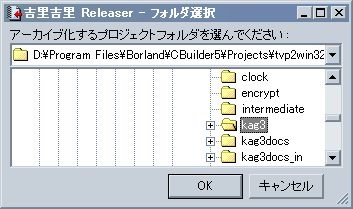
When you run Releaser (krkrrel.exe in the tools folder), you will first be asked to specify a folder. Please specify the folder you want to process.
The files inside the specified folder will be targeted.


Note
Releaser has a feature where, during the process of creating the final archive, if it finds files with identical content, it will combine them into one even if the filenames are different, using only the capacity of a single file.


Note
Releaser automatically ignores CVS meta-information directories (directories named "CVS" containing a file named "Repository"). It also ignores files and directories whose names start with a . (dot) (such as UNIX-style hidden files or Subversion meta-information directories).


Note
When Releaser creates an archive, it creates a file named default.rpf in the directory where the archive was created. This file contains the options used during archive creation, allowing you to easily create archives with the same settings next time.
Releaser Settings Screen

After selecting a folder, the settings screen will appear.
"Back to Folder Selection" button
Allows you to redo the folder selection.
"Profile: Save" button
Saves the current settings to a file.
"Profile: Load" button
Loads settings from a file.
"Create" button
Outputs an archive file or an EXE format executable file based on the current settings.
"Cancel" (or Exit) button
Exits Releaser.
"Output" tab
ReleaserOutput.png

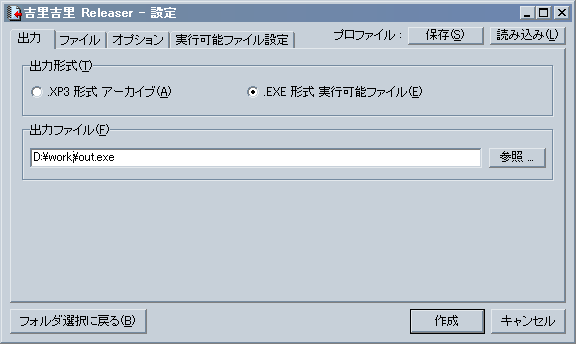
"Output Format"
Selecting ".XP3 Archive" outputs a file in xp3 format (the standard Kirikiri archive format). Selecting ".EXE Executable File" outputs an executable file. If ".EXE Executable File" is selected, the krkr.eXe located in the same folder as Releaser (krkrrel.exe) or its parent folder will be used.
"Output File"
Specify the file to be output. Clicking the "Browse" button allows you to specify the file via a dialog box.
"Files" tab
ReleaserFiles.png

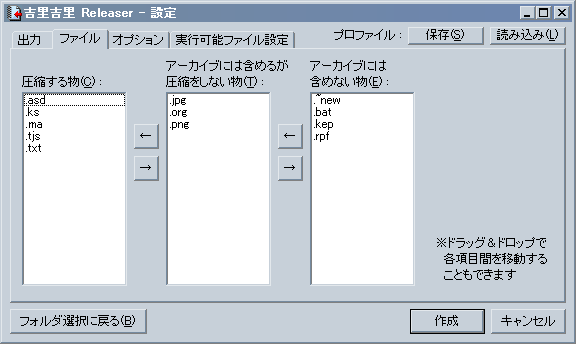
For each extension, you can choose "Compress," "Include in archive but do not compress," or "Do not include in archive." Usually, the default classification is fine.
Classifying files as "Compress" will perform compression, reducing the file size. Additionally, it makes the content difficult to decipher when viewed with a text or binary editor. However, compression has the disadvantage of taking time during extraction. Files like PNG, JPEG, and ERI are already compressed, so classifying them as "Compress" has little effect and only increases extraction time; therefore, compression is not recommended for these.
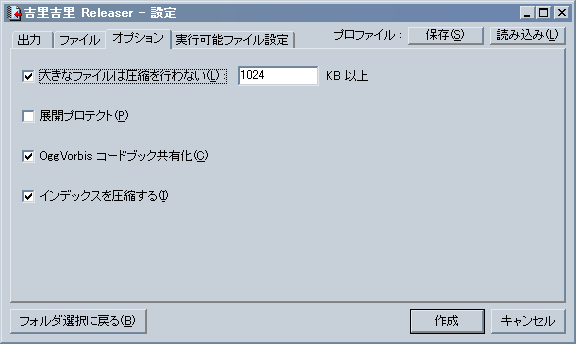
"Options" tab
ReleaserSettings.png

"Do not compress large files"
Even if a file is classified as "Compress," it will not be compressed if it exceeds the specified size. Due to Kirikiri's structure, compressed files must be expanded in memory, so compressing large files increases the runtime cost.
"Extraction Protect"
When checked, the "Extraction Protect" attribute is added to the index (the list of stored files) inside the archive. This allows you to signal to archive extraction tools that "the author does not want the files to be extracted."
"OggVorbis Codebook Sharing"
When checked, the vector quantization codebooks for OggVorbis files (.ogg files) are shared. Since OggVorbis files often have common codebooks across multiple files, combining them into one can save space.
"Compress Index"
When checked, the index inside the archive (the list of stored files) is compressed to save space.

Note
Checking "Extraction Protect" in the "Options" tab does not actually perform encryption to prevent extraction. It only serves as a declaration of intent. Also, those who create archive extraction tools (if any) should consider the existence of this extraction protect flag (e.g., by refusing extraction or showing a warning before extracting if this flag is set).

"Executable File Settings" tab
This is displayed only when an executable file is specified as the output format.
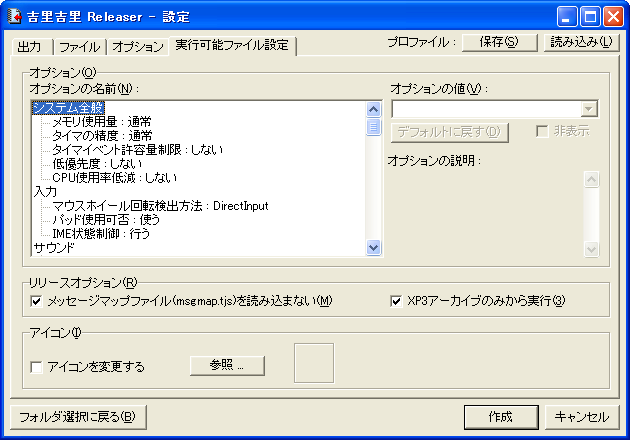
The settings screen here is the same as the Kirikiri Configuration.

ReleaserExeSettings.png

"Options"
You can set default options for the executable file.
"Icon"
You can specify the icon for the executable file.

Command Line Options

Releaser accepts the following command line options.
Folder name
Specifies the target folder.
-go
Creates the archive immediately and then exits. Use this for batch processing, etc. Please save the options in advance as default.rpf in the target folder (even without this, it is possible to create an archive by combining it with the -nowriterpf and -out options).
-nowriterpf
Does not write default.rpf upon exit.
-out filename
Specifies the output filename.
-rpf filename
Specifies the profile to load.

For example, specify as follows:

krkrrel project -out ..\release\data.xp3 -nowriterpf -go